Your brand, your limits, your hours
The settings that apply to every client instance on an environment: the name and colours they see, your own domain, what happens when one outgrows its plan, and when updates are allowed to run.
Verified on September 13, 2026
On a multi-tenant environment, most of what you configure is not per client — it is for all of them at once. Those settings live in Environment settings, folded at the bottom of the Instances tab so they stay out of the way of the client list you actually visit for.
Four of them are worth understanding before you sell anything.
Your own domain
By default a client's address sits under the platform's domain. Your own domain replaces that: one DNS record and one wildcard certificate, and every instance gets an address under your name — the ones you already have as well as the next.
This is the difference between a client who knows they are on RollBackk and one who only ever sees you.
The certificate comes one of two ways. Automatic is the recommended one: it is issued and renewed for you, and you delegate a single DNS record — no credentials are shared. Provide my own uses a wildcard certificate you already hold, and renewing it stays your job. Remove branding puts every instance back on its platform address.
The brand your clients see
Your brand sets the name, the colours and the logo your clients meet — on their signup page, inside their Odoo, and on the documents it produces. Only a multi-tenant environment has one — a solo environment has no client to show it to.
Two things about it are worth knowing.
Changing it applies immediately, to everyone. Saving a new brand pushes it into every live client of the environment and tells you how many were rebranded. There is no separate publish step, because an integrator who has just rebranded has told us their clients are seeing the wrong name right now.
One client can differ. A per-client override layers on top, for the customer who wants their own colours. Clearing that override falls back to the environment's brand — not to no brand at all, which would leave that one client staring at a blank white product.
What happens when a client outgrows their plan
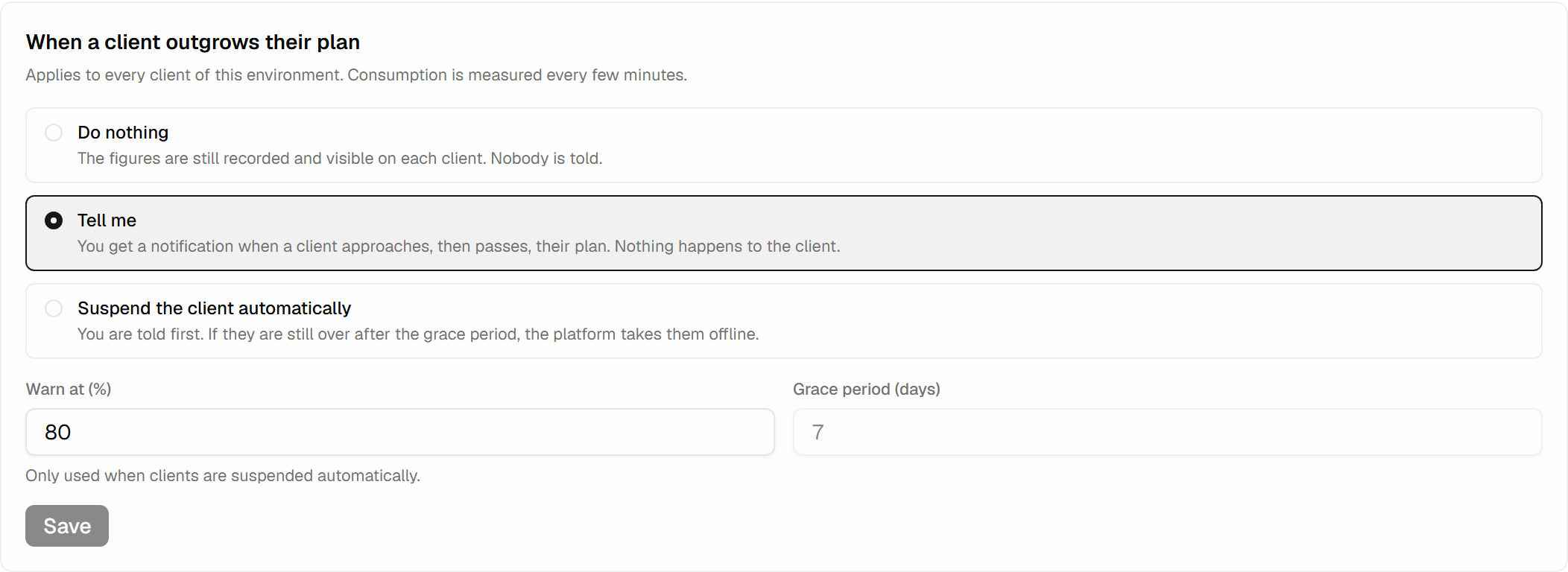
Quota policy decides the consequence, and it is one of three. The choice is yours because the right answer depends on what you sell:
| Setting | What the platform does |
|---|---|
| Do nothing | Records it. Nobody is told, nothing changes. |
| Notify me | Tells you. Your client is never touched. |
| Suspend after a grace period | Tells you, then takes the client offline if they are still over when the grace period ends. |
Suspension here is the same reversible thing as suspending by hand: it stops the client's address and touches none of their data. And the platform resumes them by itself as soon as they are back within their plan — a limit that punishes forever is a support ticket, not a policy.
There is also a warning threshold, so you hear about a client approaching their limit rather than crossing it.
Per-client prices
Client billing is where a price per client instance is set, and where you see what this environment is currently worth per month across all of them. A template can also carry its own price, which is what the self-service guide covers; this panel is the environment-wide figure.
When updates are allowed to run
The default update window sets the hours during which client upgrades may run on this environment. The upgrade wave described in the client instances guide respects it: a client with a window is only migrated inside it.
Set it to the quiet hours of the businesses you serve, not yours. A retailer and an accountant do not have the same quiet hours, and a client with their own window overrides this default.
Who can change what
These panels are gated separately, and the split follows the risk: environments.domains for your
domain, environments.config for the brand, tenant.view to see the quota policy and tenant.manage
to change it. A collaborator can be trusted with the client list without being able to rebrand every
customer you have.