One codebase, many client instances
A multi-tenant environment gives each of your clients their own isolated Odoo database on a single codebase you maintain once. How to add an instance, what the client gets, and the password shown only once.
Verified on September 13, 2026
If you run Odoo for several customers, the usual answer is one environment each: several builds, several deploys, several things to keep in step. A multi-tenant environment is the other answer — one codebase, one image, and an isolated Odoo database per client.
Each of those databases is called an instance. Your client gets their own data, their own users and their own address; you maintain one environment.
The Instances tab
Multi-tenancy is a mode an environment is created in, and an Instances tab appears on environments that have it. Without it there is nothing to see, and the tab is not there.
The instances on one environment share exactly what you would expect: the code, the modules and the version. They share nothing else — each has its own database, and Odoo picks the right one from the address the browser asked for.
That sharing is the whole trade. Deploying once updates everyone, which is the point; it also means a bad deploy reaches everyone, which is why the guide on releases exists.
Adding an instance
Add instance asks for an instance name, a display name and an administrator email. The instance name becomes both the database name and the first part of the address, so it is worth choosing carefully: it cannot be changed afterwards, and it has to be unique on the environment.
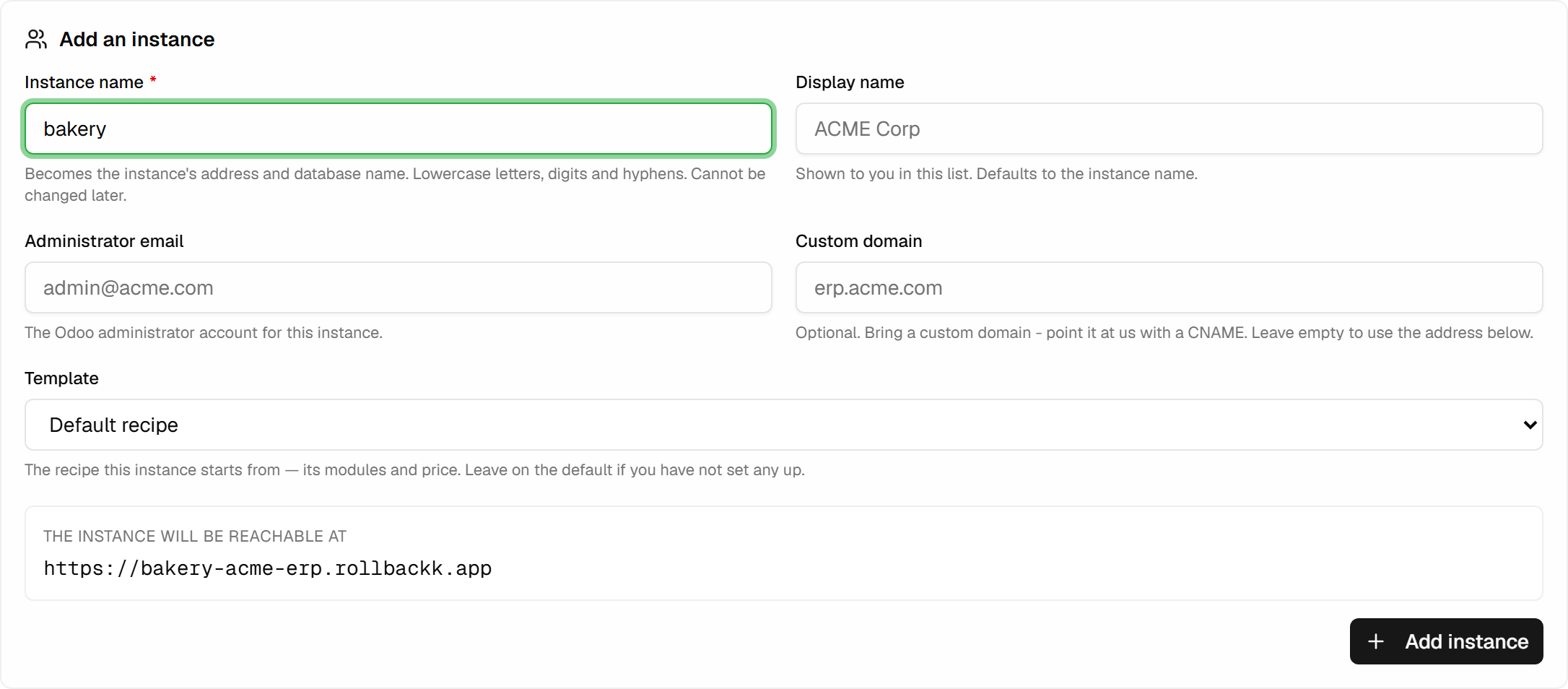
Four things are checked before anything is created, and each refusal says which:
- the environment must be multi-tenant and active — an instance cannot be added to an environment that is still being built;
- the account must not be suspended for unpaid invoices;
- the instance name must be free on this environment;
- a custom domain, if you give one, must not already belong to another instance.
There is also a length limit that surprises people: the instance name and the environment name together become a PostgreSQL database name, which cannot exceed 63 characters. A long name plus a long environment name is refused for that reason alone.
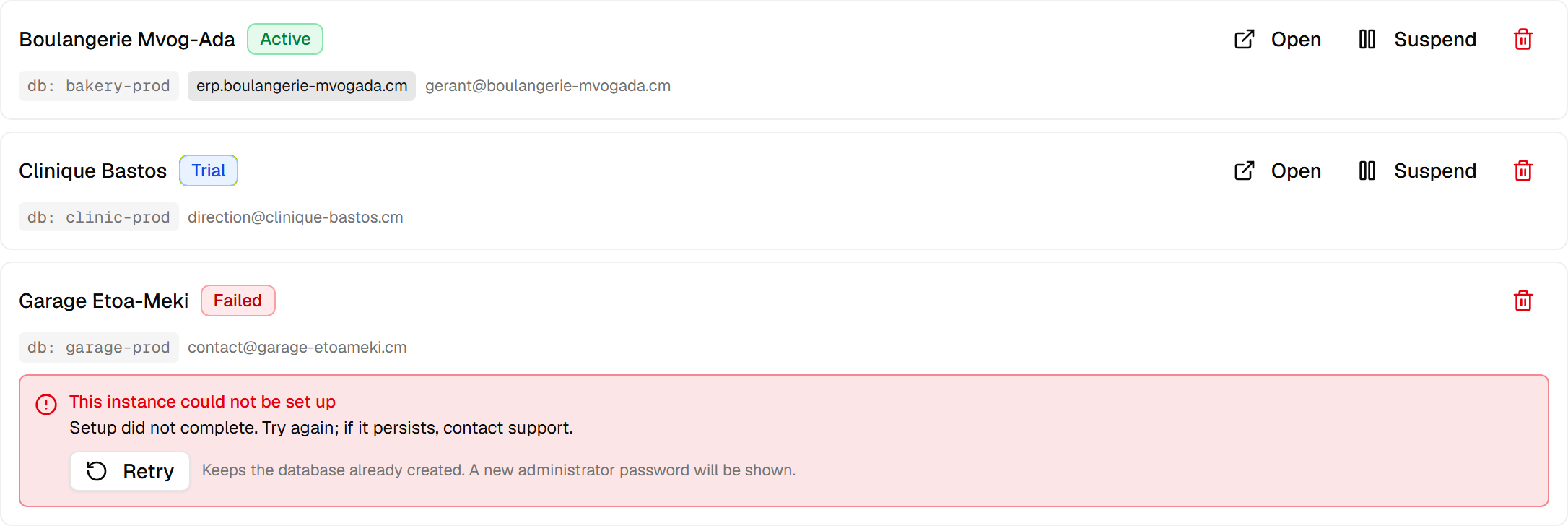
Creation is not instant. The row appears at once while the database is created and Odoo initialised, and turns active on its own. If it fails, the row says so and offers Retry, which re-runs the setup on the database already created and shows you a new administrator password.
An instance can also be given an Owner: the client who manages it from their own space in the portal. The client portal guide describes what they can do there.
The password shown once
When an instance is created, the platform generates the Odoo administrator password and shows it to you once. It is never stored in a form anyone can read back — not by you, not by support.
Copy it and hand it to your client immediately. If it is lost later, Issue a new password replaces it and emails the new one to the client — the Odoo access guide covers it.
Addresses: the one that always works, and the one they want
Every instance has two addresses. The platform address is derived from the instance name and keeps working no matter what. A custom domain is the one your client will actually want, and adding it gives you the DNS record their domain owner has to create.
Once that record exists, Check DNS confirms it points here and Publish domain puts the domain live; HTTPS follows within a few minutes. Until then the platform address is the working one. The order cannot be swapped — DNS first, certificate second — for the reason the custom domain guide explains.
Suspending, resuming, deleting
Suspend takes an instance offline without destroying anything: the data stays, the address stops serving. It is the right lever for a customer who has stopped paying, and it is reversible in one click.
Delete is not. It destroys that instance's database, and it sits behind its own permission —
tenant.delete — rather than being folded in with day-to-day management. A team member can run your
client instances all day without being able to erase one.
Three permissions divide the work: tenant.view to see the list, tenant.manage to add, suspend and
resume, and tenant.delete to remove. Each can be granted on a single environment rather than the whole
team, so a collaborator can be given the instances of one environment and nothing else.
Updating everyone at once
The reason to run clients this way is that one deploy updates all of them. When you move the environment to a new Odoo version, the upgrade wave at the top of the tab carries every instance across — and it does not do it all at once.
The order is the useful part:
- Your own database first. The environment's own workspace goes before any customer, so if the new version is broken you meet it before they do.
- Then one instance alone — the canary. The wave stops there and waits for you to look.
- Then the rest, in batches, and only inside each instance's maintenance window if it has one.
A wave that hits a failure pauses; it does not march on through the rest of your customers. Instances already migrated stay where they are, and you resume or cancel once you have decided what to do. For an operation that touches every client you have, the first failure is the cheapest one to stop at.