Point your own domain at an environment
Getting erp.your-company.com onto an environment: the two DNS records, the four states, and why the order of operations is not negotiable.
Verified on September 13, 2026
An environment is served on a .rollbackk.app address from the moment it is created, over HTTPS, with
nothing to do. Putting your own domain on top of that takes five minutes of work and a wait you do not
control.
This guide covers both, and above all the order: one step cannot succeed until the previous one has, and that is where everyone gets stuck.
What you already have
Every environment gets a system address and a valid certificate immediately. That is possible because the platform owns that DNS zone: the certificate covering it is a wildcard and already issued, so a new environment waits for nothing.
Your own domain is outside that zone. The platform cannot write to it, cannot prove it controls it, and therefore cannot obtain a certificate until you have pointed the domain at it. Everything below follows from that asymmetry.
Adding the domain
The environment's Domains tab. Type the full name — erp.your-company.com, not your-company.com if
a subdomain is what you want — then Add.
Nothing is connected yet. Adding creates a pending entry and hands you two DNS records to create at your DNS host. The domain appears in the list as "Pending verification".
The two DNS records
They do different jobs, and you need both.
| Record | What it does |
|---|---|
| Verification (TXT) | Proves the zone is yours. Without it, anyone could claim your domain. |
| Target | Actually sends traffic to the platform. This is what makes the site answer. |
The target's record type is shown next to its value — the platform tells you which to use, do not guess. Each value copies with one click: retyping a DNS value by hand is the most common way to lose half an hour.
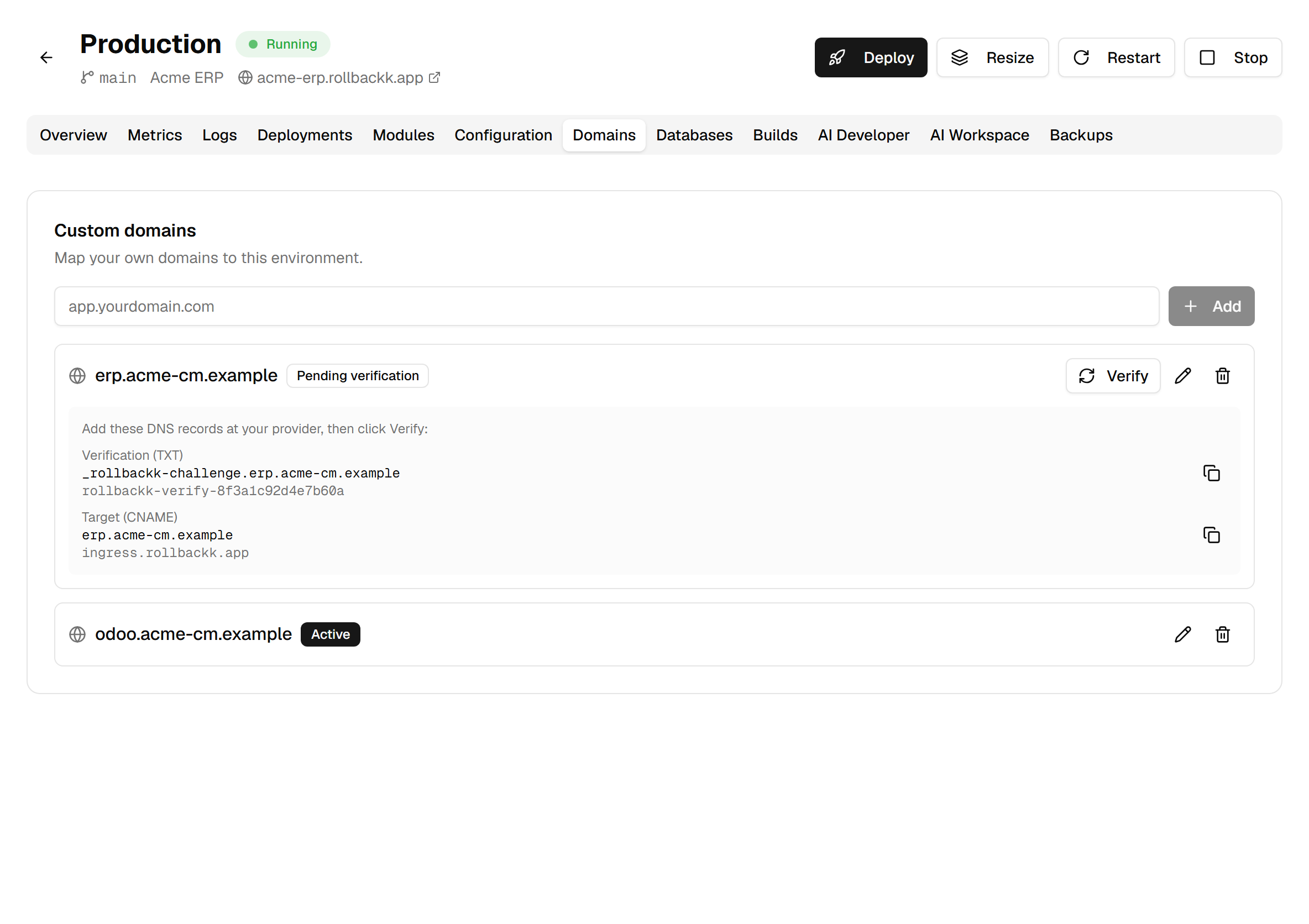
Create both at your DNS provider, then come back.
Verify, then wait for the certificate
Verify asks the platform to re-read your zone. From there the domain moves through four states, and each one says exactly where you are:
- Pending verification — the records are not visible yet. Either they are missing, or they have not finished propagating.
- Verified — the TXT record was read, ownership is proven.
- Issuing certificate — the platform is requesting a certificate for your domain. This step is not instant.
- Active — the domain answers over HTTPS.
A domain that sits in "Issuing certificate" for several minutes is not stuck: it is the slowest step, and it depends on an outside certificate authority.
The order is not negotiable
Here is the point this guide exists to make.
The certificate for your domain is obtained through a validation that visits your domain, over HTTP, from the internet. It can only succeed once the target record is in place and resolves to the platform.
In practice: clicking Verify before the target exists fails — or worse, passes verification and then stalls at certificate issuance, a state that looks like a platform outage when it is your DNS that is not ready.
Create both records, wait for them to propagate, and only then verify.
Renaming or removing a domain
Rename domain is for when you mistyped the name. It is not a move: the new name starts verification again, with new records to create.
Removing a domain detaches it from the environment. The system address keeps working — it is never taken away, which always leaves you a route into your Odoo while you untangle a DNS problem.
When it does not go through
Three causes cover most cases, and none of them is visible from the platform:
- Propagation. A freshly created record can take time to be visible everywhere. Check from a public resolver before concluding something is broken.
- Cloudflare's orange cloud. A record created at Cloudflare is "Proxied" by default: in that mode your name no longer publishes your CNAME but Cloudflare addresses, and the platform sees neither -- the check answers "does not point here yet" however long you wait, and the certificate validation never reaches us. Open the record, set Proxy status to DNS only (grey cloud), save, check again. It is what Odoo Online asks for a CNAME to a database too. An instance's "My domain" panel detects it and says so in plain words.
- A restrictive CAA record on your zone, forbidding the certificate authority in use from issuing for your domain.
In all three the symptom is the same — the domain stays at "Issuing certificate" — and the fix is on your side, not here.