Ship a module, from your code to the app
Why the Modules tab has no install button, what separates a module in the app from one still in the branch, and what happens to your database when you press Update modules.
Verified on September 13, 2026
The Modules tab of an environment looks like a place to install modules. It mostly is not, and the first minute you spend here is better spent understanding why.
Once you have that, the tab reads in one glance: it tells you what your code contains, what your Odoo actually has, and whether the two agree.
Your modules come from your code
The Install and Uninstall buttons on each card are inactive. Your module set belongs to your repository, not to a button on this page: what is in the branch is what gets built into the image, and what is in the image is what your Odoo can run.
That constraint is what makes an environment reproducible. If modules could be added by hand here, two environments built from the same commit would not necessarily contain the same thing, and neither the duplicate you make for testing nor the restore you make after an incident would give you back what you had.
So the loop is: change the code, build and deploy the branch, then bring the database in line. This tab is the last step of that loop, not a shortcut around it.
In app, or in branch
Every module discovered in your branch carries one of two badges, and the difference decides what you can do next.
| Badge | What it means |
|---|---|
| In app | The module is in the image this environment is running. Odoo can see it now. |
| In branch | The module exists only in your source. This environment does not have it yet. |
Sync from repo re-scans the branch, which is how a module you pushed five minutes ago appears here at all. It reads your code; it changes nothing in the environment.
Turning an In branch module into an In app one is a build and a deploy, not an action on this tab. That is the meaning of the line under the card: deploy the branch to make it installable.
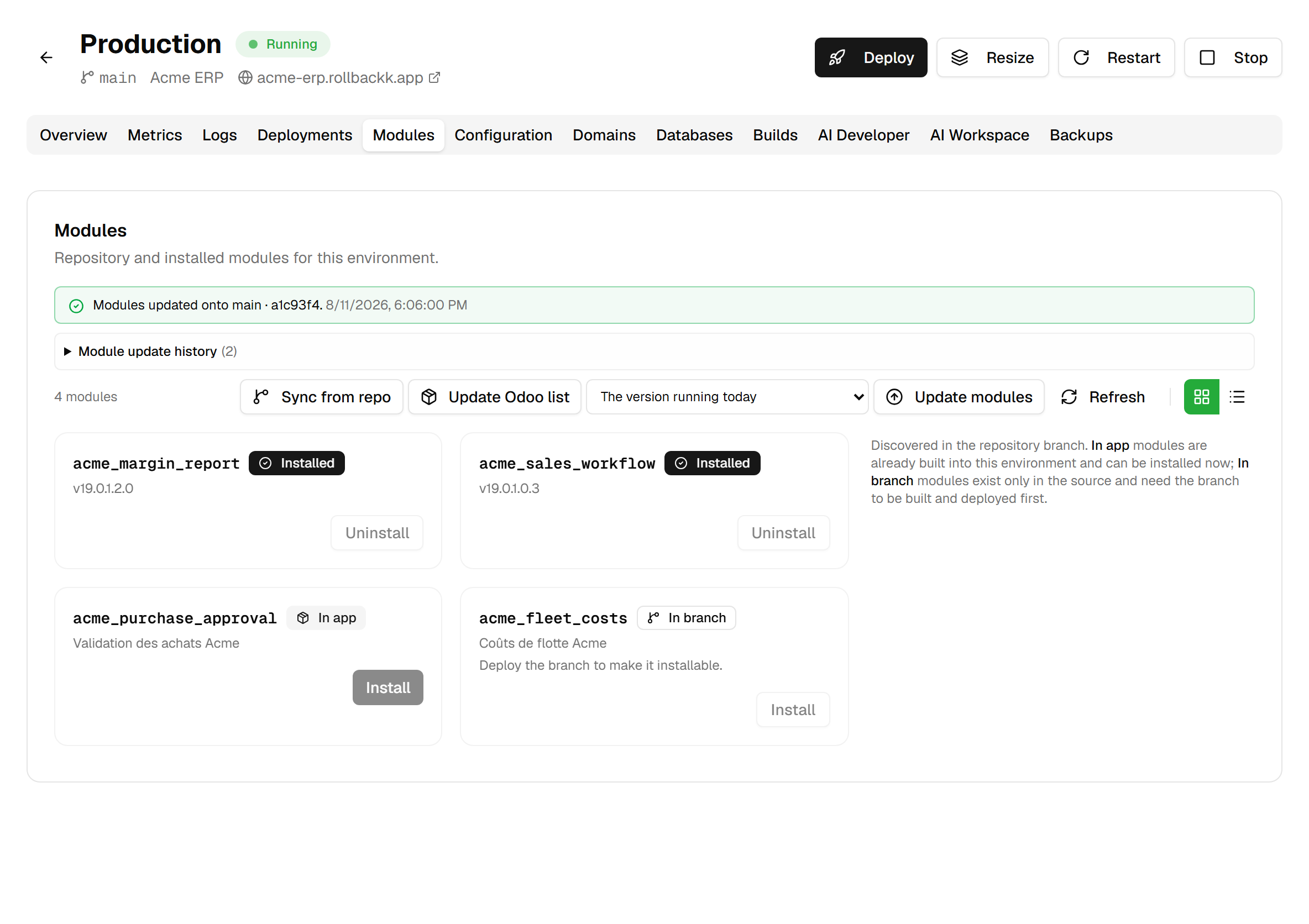
Refreshing Odoo's list
Odoo does not re-read its addons path every time it starts. It keeps its own list of known modules, and a module that arrived with your last deploy can be sitting in the image while Odoo still knows nothing about it.
Update Odoo list asks it to look again. The refresh runs inside the running environment and can take more than a minute, so the button does not wait for it: it starts the scan, and the In app badges update by themselves shortly after.
Press it when a module you know you deployed is not showing as being in the app. If the environment is stopped, the refresh cannot run at all, and the message says so.
Updating the modules
Update modules runs the database migration for every installed module of this environment — Odoo's
-u all. It is what a code deploy needs afterwards: the deploy ships the new code, and this brings the
database schema and data in line with it.
Next to the button is a version picker, and the two work together. Choosing a version puts it in service and then migrates onto it, in that order, as a single operation. Splitting those into two separate actions is how an environment ends up serving one version while its database still carries another version's schema — a state that produces errors nobody can explain from either side. Leaving the picker on the version running today migrates onto what is already in service, without deploying anything.
Two things are worth knowing before you press it:
- If the chosen version cannot be put in service, no migration runs at all. You get a failed run saying exactly that, rather than a migration silently applied against the version you were replacing.
- The environment is briefly disrupted while the migration runs. If you are unsure of the change, take a backup first from the Backups tab — see the guide on duplicating an environment to test.
Only one update runs at a time per environment. Asking for a second while one is in flight gives you back the one already running, instead of stacking two migrations on the same database.
What the update leaves behind
A migration takes minutes, and you are allowed to leave. The run is recorded, not merely announced: its outcome is written down and survives a reload, a logout, and a change of machine.
That matters most when it fails. The failed run keeps Odoo's own error — the model, the field, the view that could not be validated — and the tail of its migration log underneath. A platform-worded summary would tell you the update failed, which you already know; only Odoo's line tells you which of your views references a field you removed.

The history is collapsed by default and opens on the most recent run. A run that migrated whatever was already deployed is labelled version in service, rather than left blank — an empty cell would read as missing data instead of a choice somebody made.
When Odoo refuses everything
One day the tab will look normal and nothing will work. Installs are refused, updates do nothing, and inside Odoo even its own core modules have their buttons greyed out.
This is Odoo protecting itself. When a module is left in a transitional state — to install, to upgrade, to remove — Odoo refuses every module operation on that database until the state is resolved.
It happens when an install is interrupted: a restart at the wrong moment, or a module that was not on the
addons path when Odoo went looking for it.

Unblock cancels those operations. It does not finish them — finishing would mean running the install that already failed. Each module goes back to where it was: one that was being installed returns to not installed, one that was being upgraded or removed stays installed. Nothing is installed, nothing is removed, no data is touched, and you can start the install again afterwards.
It is a button and not an automatic repair. Cancelling an operation somebody may be halfway through diagnosing is your call, and it writes to your Odoo database.
What this tab does not do
It does not install a module into Odoo for the first time. Once a module is In app and Odoo's list has been refreshed, you install it from Odoo itself, in its Apps screen — this tab then tracks it and keeps it migrated.
On a multi-tenant environment, the version picker and Update modules are not offered at all. Your client databases are migrated through the upgrade wave, which rolls them forward in a controlled order and keeps its own history; migrating them all at once from here is precisely what you do not want.
And it never touches another environment. Each environment carries its own database, its own image and its own module states, which is why the test copy you migrate first tells you anything at all about the production one you migrate second.