Duplicate production to test
Take a backup, restore it — in place or into a new environment — and know which of the two you actually want.
Verified on September 18, 2026
Reproducing a bug on real data should not be a project. A backup of production restores into a fresh environment in a few clicks, and the original does not move.
The one thing to understand before clicking is that there are two restores, and they do very different things.
What a backup holds
A backup takes the environment's PostgreSQL database and its filestore — the attachments, images and documents. Both, together: a database restored without its filestore gives you an Odoo that opens and in which every attachment is broken.
It is stored separately from the environment, not on its disk — which is what lets a backup outlive a broken environment. It does not outlive a deleted one: deleting an environment purges every backup of it, archives included. Download what you want to keep before you delete.
Every backup carries a size, a date and an expiry. The expiry comes from the retention policy, not from you: a backup can disappear on its own, and that is the setting to check before relying on an old copy.
Taking a backup
The environment's Backups tab. The button starts one immediately; it appears in the list with its status while it runs.
Beside it, Automatic backups defines a policy: a frequency and a retention in days. Daily at 02:00 UTC is the usual setting. The retention is capped by your plan — the backups guide covers how.
Manual backups and the policy are not alternatives. Before anything risky — a version bump, a module import — take one by hand: the newest scheduled backup may be several hours old.
Two ways to restore
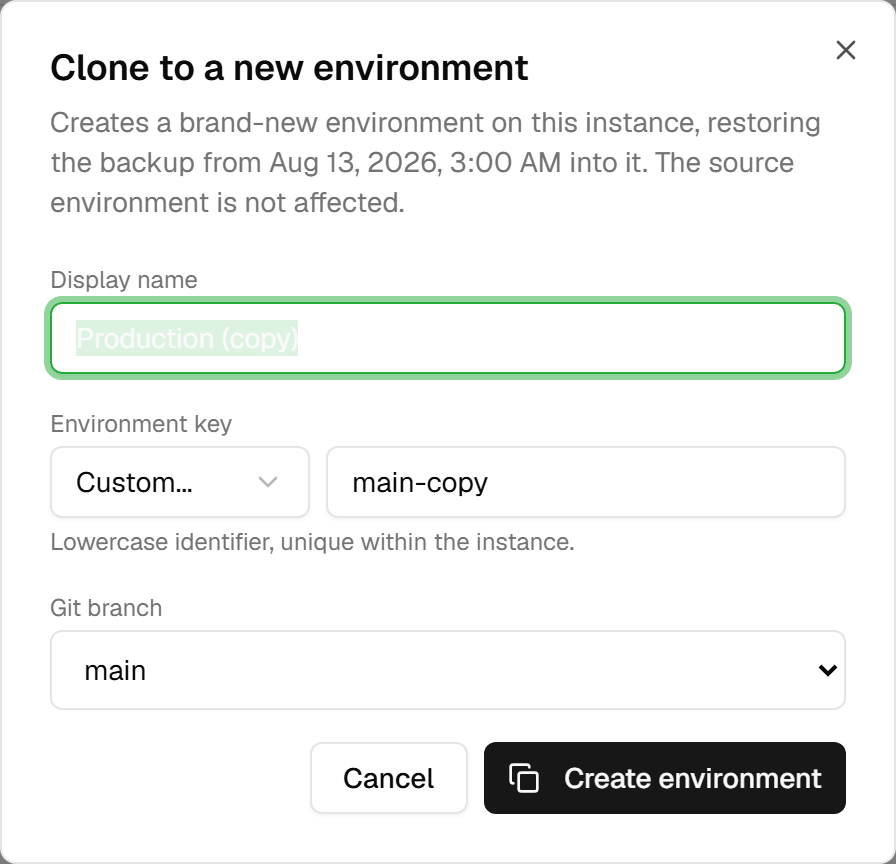
This is where the distinction matters, and both actions sit side by side on the backup's row. They do not look alike, though: Restore is a labelled button, while the clone is the copy icon next to it — its tooltip reads "Create a new environment from this backup". The heading "Clone to a new environment" only appears once the dialog is open.
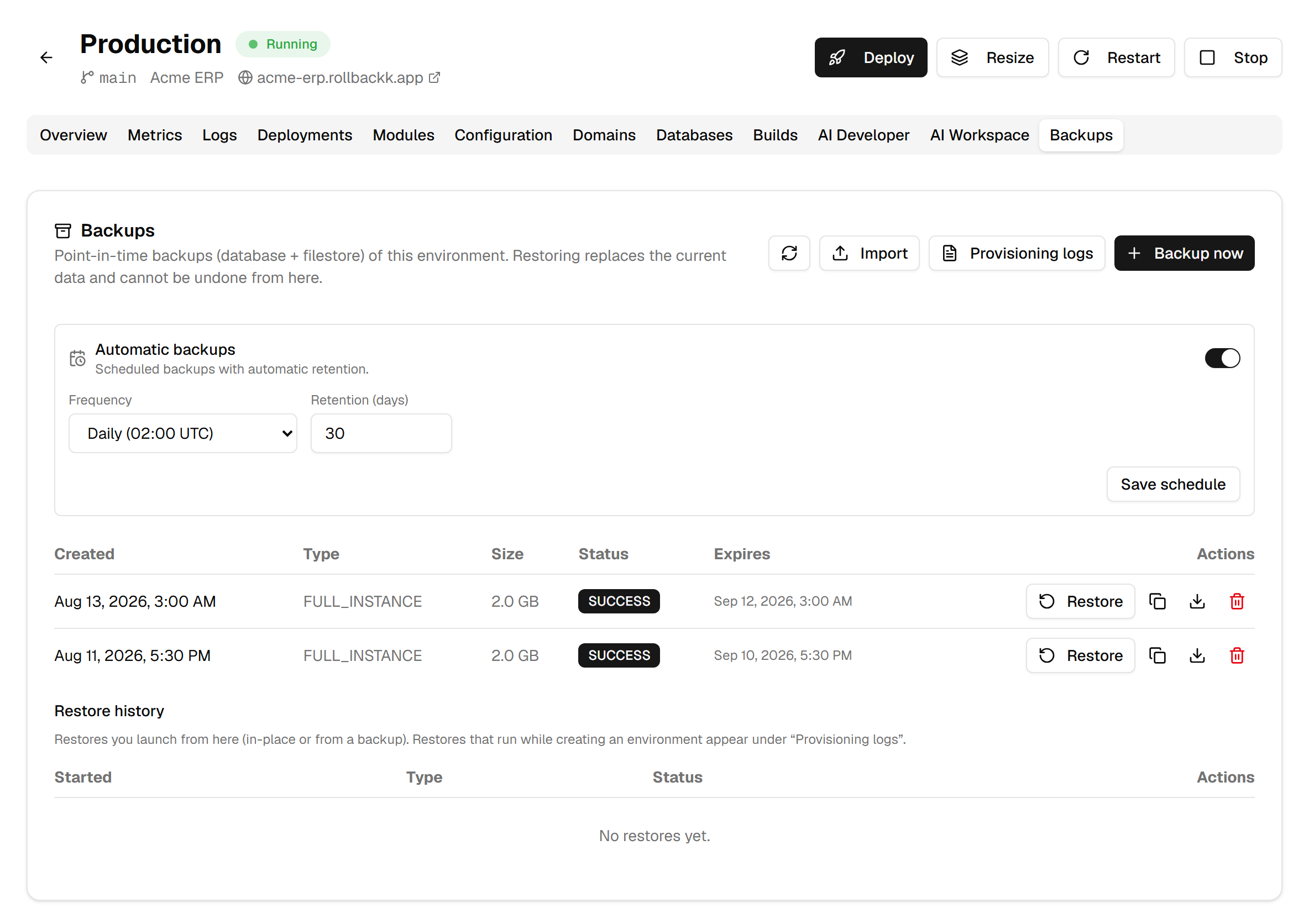
Restore puts that backup back into the current environment. It overwrites what is there. Two things happen before you have time to hesitate: a safety copy is taken automatically, and the environment restarts. So you lose everything written since the backup you chose — and the safety copy is not the undo button it sounds like: it is kept by the platform, it does not appear in this list, and you cannot restore it from here. If you want a copy of the current state that you control, take a backup before you restore. The backups guide covers this in full.
Clone to a new environment creates a fresh environment from that backup. The source is not touched at all. This is the one to choose nine times out of ten: to reproduce a bug, run an acceptance test, or show something to a client, there is no reason to put production at risk.
The clone asks for three things: an environment key (the lowercase identifier, unique within the instance), a display name, and a Git branch. All three are pre-filled from the source — the name followed by "(copy)", the key suffixed with "-copy", the same branch — and all three remain required. The copy can keep the source's branch: several environments can run the same one. Other branch… creates the branch you type in the repository, from the source's branch.
It also says where the copy's database is born: by default where the source's is — the same database cluster of your team, or the platform's database — and you can choose another place. On your own server, the copy is born there too, with its database.
What the clone carries over, and what it does not
It carries over the repository and the resource template of the source environment: the new environment therefore builds the same code, on the same machine size.
Three things it does not carry:
- Production's life, by default. The Test copy box, ticked by default, neutralizes the clone before it answers: outgoing and incoming mail servers, scheduled actions and payment providers disabled, mail aliases removed, every user but the administrator deactivated (who gets a new access), and Odoo shows its "neutralized database" banner. Two independent boxes keep users active: Keep internal users leaves your team its usual access, for acceptance testing; Keep portal accounts keeps your customers' and suppliers' accounts, to test a journey as they see it. The rest of the neutralization is unchanged. On an Odoo Enterprise instance, the copy does not take production's subscription either: Odoo allows one database per subscription code, and the copy gets a database identity of its own. It therefore runs as an Odoo trial, by design — the expiry banner it shows is expected. Recreate it from production when you need it. Untick the box only for a real migration: a clone left live sends production's email and replays its scheduled jobs — until 2026-09-18 that was the behaviour, with no box. It also keeps production's subscription; save the code on the new environment then, and remove the old one once the switch is done.
- Auto-deploy is off. A clone exists to freeze a state, not to follow the branch. If it redeployed on the first push, the state you wanted to examine would disappear while you were examining it.
- Billing starts as pending. A clone is a full environment: it consumes resources and is billed as one once active. It is not a free copy, and the best habit is to delete it once the question that created it has been answered.
Importing an existing dump
You can also restore a database that did not come from here. The import happens in two steps: the browser uploads the file straight to object storage, then the platform registers it as a backup of this environment. It then appears in the list and restores like any other.
The upload goes from the browser to storage, without passing through the platform. That is what makes a multi-gigabyte file possible — and it is also why a failure at that step says little: the error comes from storage, not from the application. An import that fails immediately is almost always the file size or a dropped connection, not the backup itself.
Following a restore
The tab keeps a restore history: the ones you start from this screen, in place or from a backup. Each one exposes its logs.
Restores that ran during the creation of an environment are somewhere else — behind the Provisioning logs button, on the same tab. That is the distinction that matters when a clone will not start: the restore that failed is not in the history, it is in the provisioning logs.
A restore takes as long as the database takes. A large one runs for tens of minutes, and an environment that stays in "creating" is not necessarily stuck.
Testing a restore before you need it
A backup you have never restored is a belief, not a guarantee. The only way to know it contains what you think is to restore one — and the clone makes that test free of risk.
A useful test is four steps:
- Clone the most recent backup into a throwaway environment.
- Open Odoo and sign in.
- Check an attachment, not only a record: the filestore is what is missing when something is missing.
- Delete the clone.
Do it once after going live, then after every plan or version change. The day you restore for real, you will already know how long it takes and what the result looks like.