Deploy from your Git repository
Connect a repository, deploy a branch, and understand what happens between a push and a running environment.
Verified on September 13, 2026
Deploying here is not restarting a server with new files on it. Every deploy builds an image from one specific commit and then runs that image. Knowing this explains most of what you will see: why a deploy takes minutes rather than seconds, why the version running can always be named, and why going back is instant.
What you need
- An instance with at least one environment.
- The
git.managepermission to connect a repository, andenvironments.deployto deploy one. - A repository containing Odoo modules. Private repositories additionally need the provider authorisation described below.
Connect the repository
Open your instance, go to the Git Integration tab and choose Connect Repository. You can connect an existing repository or create a new one.
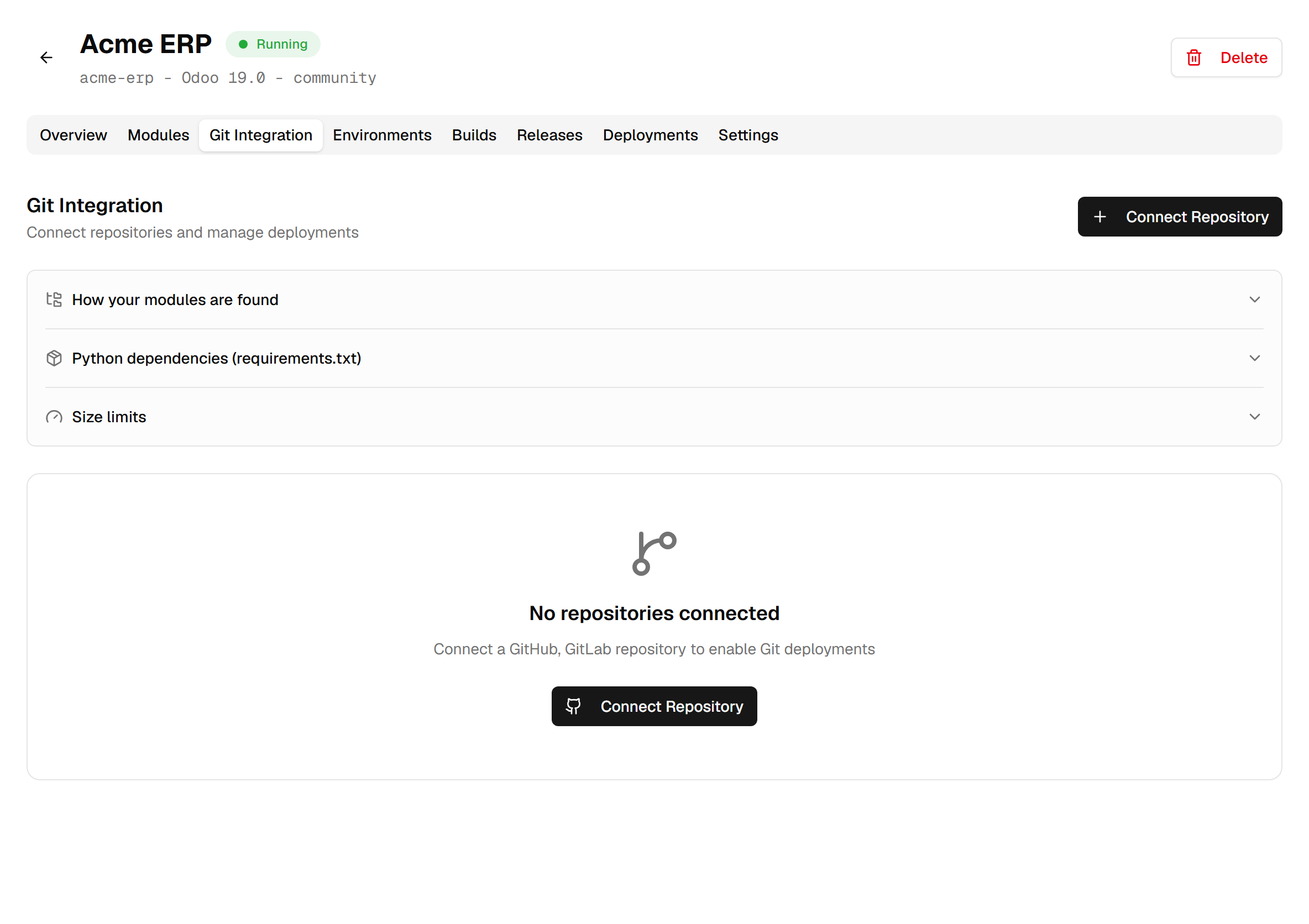
Connecting a public repository read-only works immediately. Anything else — a private repository, webhooks, auto-deploy, creating branches — needs Provider authorization first, through Connect provider. If the OAuth client is not configured for your provider yet, the interface says so rather than failing halfway through.
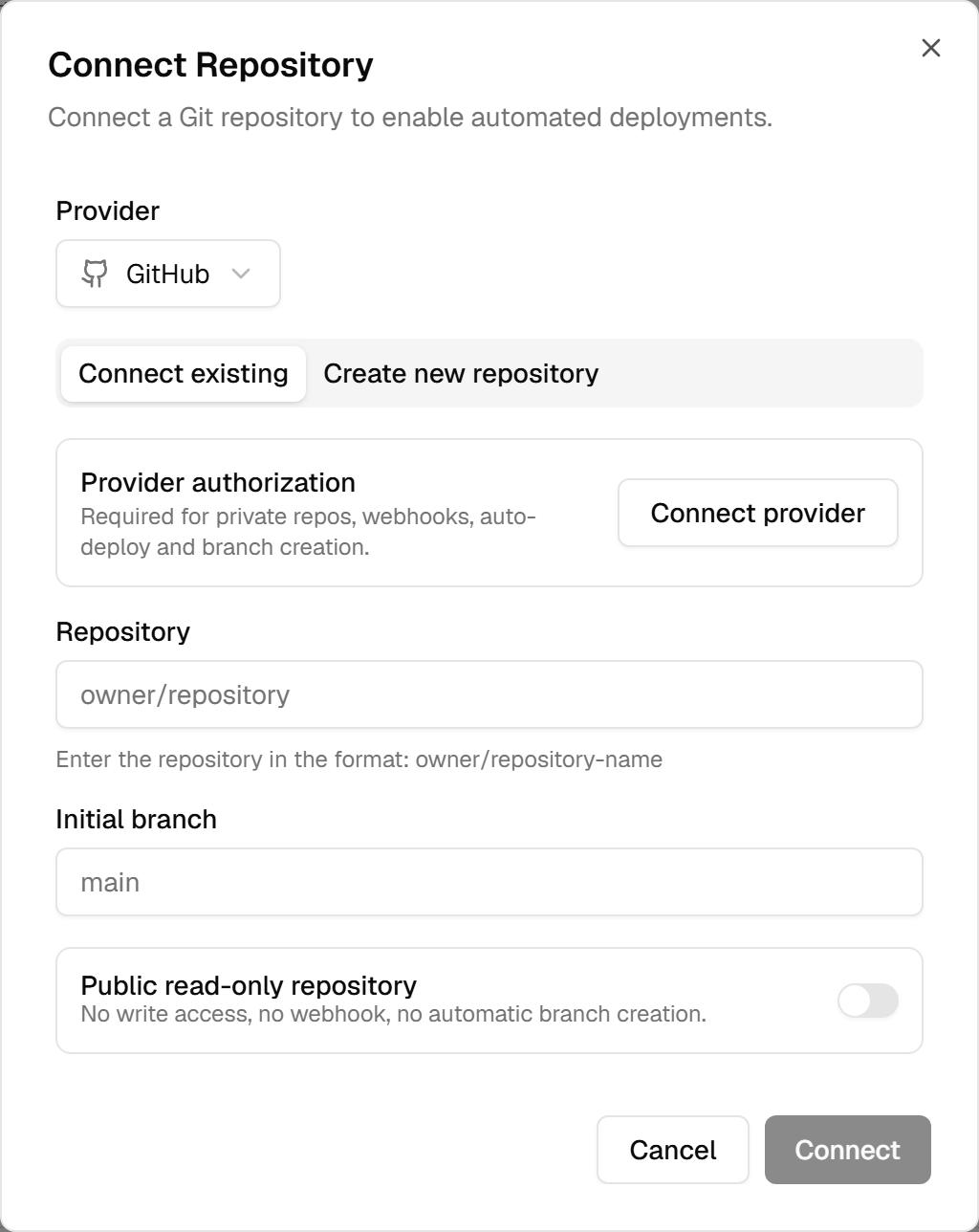
Authorising takes you to the provider and brings you back with the account listed under Authorized account. On GitHub the platform runs as an application you install, and two things can happen on the way back that are not failures. Installing it on an organisation may need one of that organisation's owners to approve it first: the screen says so, and the account appears once they have. And if your account is authorised but the application is installed nowhere yet, no repository is reachable — start the connection again and it offers the installation. A repository you expect and cannot find is usually one the installation was not given access to; change that on the provider, then Refresh repositories.
The credential stored for the repository is encrypted at rest and used only to read the branch being built, plus to write when you explicitly ask for a commit.
What a deploy actually does
When you deploy a branch, four things happen in order:
- The commit at the head of that branch is resolved and pinned. From here on the deploy refers to that commit, not to the branch.
- A build produces an image containing your modules on top of the environment's base image.
- The image is pushed to the registry under a tag derived from the commit.
- The environment is switched to that image. This step does not migrate the database: Update modules, on the Modules tab, brings it in line with the new code.
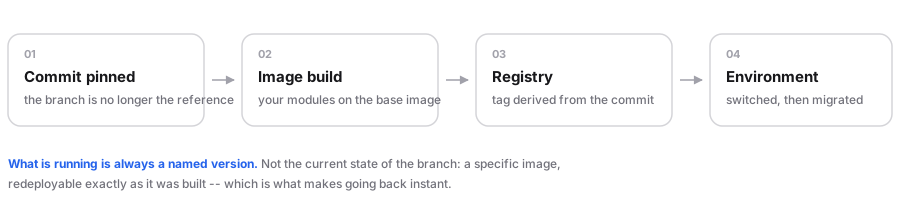
The consequence worth remembering: what is running is always a named version. Not "the latest state of the branch" — a specific image, built from a specific commit, that can be redeployed exactly as it was.
Auto-deploy on push
Enable Auto-deploy on push and every push to the connected branch runs the same sequence.
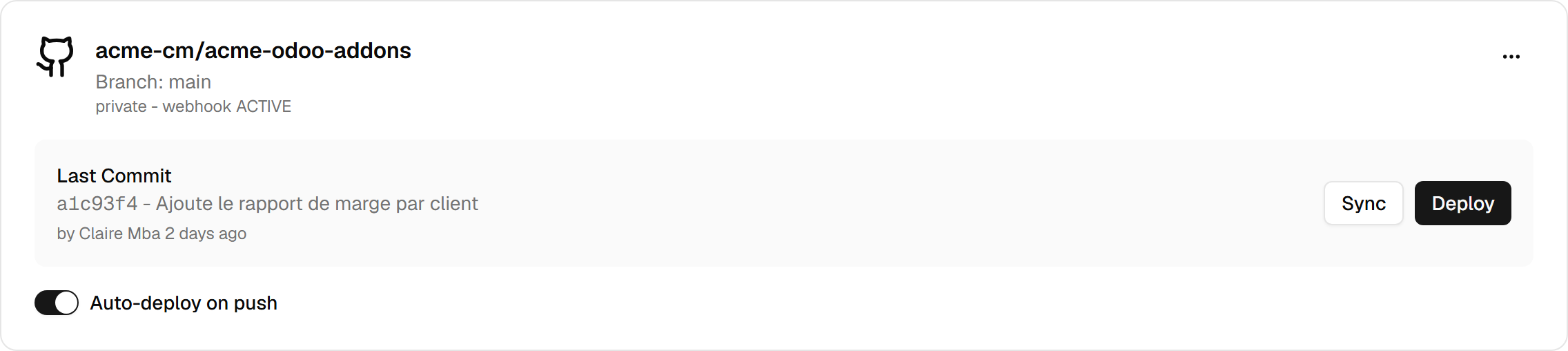
This works through a webhook, and the webhook is verified with a secret specific to that repository, not a global one. If the secret does not match, the push is rejected silently at the gate — no build, no deploy, no error on your screen, because as far as the platform is concerned nothing was pushed.
That same gate drives module synchronisation. So if you push and nothing at all happens — neither a deploy nor an updated module list — check the webhook secret before you look at anything else. It is the single most likely cause and it produces no visible error.
Two switches must be on: Auto-deploy on push on the repository card, and the environment's own. Turning the environment's on turns the repository's on too, under the same plan rule; when it is off for the repository, the environment says so and offers to turn it back on. A push deploys every environment that follows the branch pushed to, including an environment created on another branch of the same repository.
A push that arrives while the environment is still putting the previous one live is not lost: it waits in the deployments list and starts as soon as the environment is available. If several pushes are waiting like this, only the newest goes; the others are cancelled with the note "Superseded by a newer push".
An environment whose last deployment did not start is deployed again, by a push as by the Deploy button: that is how a fix brings it back. An environment that never finished its creation is restarted from its page, with Retry. A stopped environment is not redeployed by a push.
An environment's Deploy button always deploys the head of its branch at the moment you click, even if the page has been open for a long time: no need to sync first.
Where the addons come from
Your repository tree is not flattened. Each directory that contains Odoo modules becomes its own entry in
addons_path, so a repository laid out like this:
repo/
  addons/          -> one addons root
  enterprise_ext/  -> another addons root
  tools/           -> not a module directory, ignored
gives Odoo two addons roots rather than one merged folder, in the order they appear. If two roots contain a module with the same name, Odoo loads only the first one — the build log names every such duplicate, so check it when a change to a module seems to have no effect.
If your environment runs a plain base image without a build, Odoo has no /mnt/extra-addons to read and
your modules will not appear. The environment page shows a Build & deploy branch modules action in
that case — that is what turns the repository into an image.
When a build fails or times out
Two different limits apply, and knowing which one you hit saves time:
| Limit | What it covers |
|---|---|
BUILD_JOB_TIMEOUT | The build job itself — preparing the source, installing Python requirements, building and pushing the image |
BUILD_TIMEOUT_SECONDS | How long a deployment waits for its build — including any time the build spent waiting in the queue |
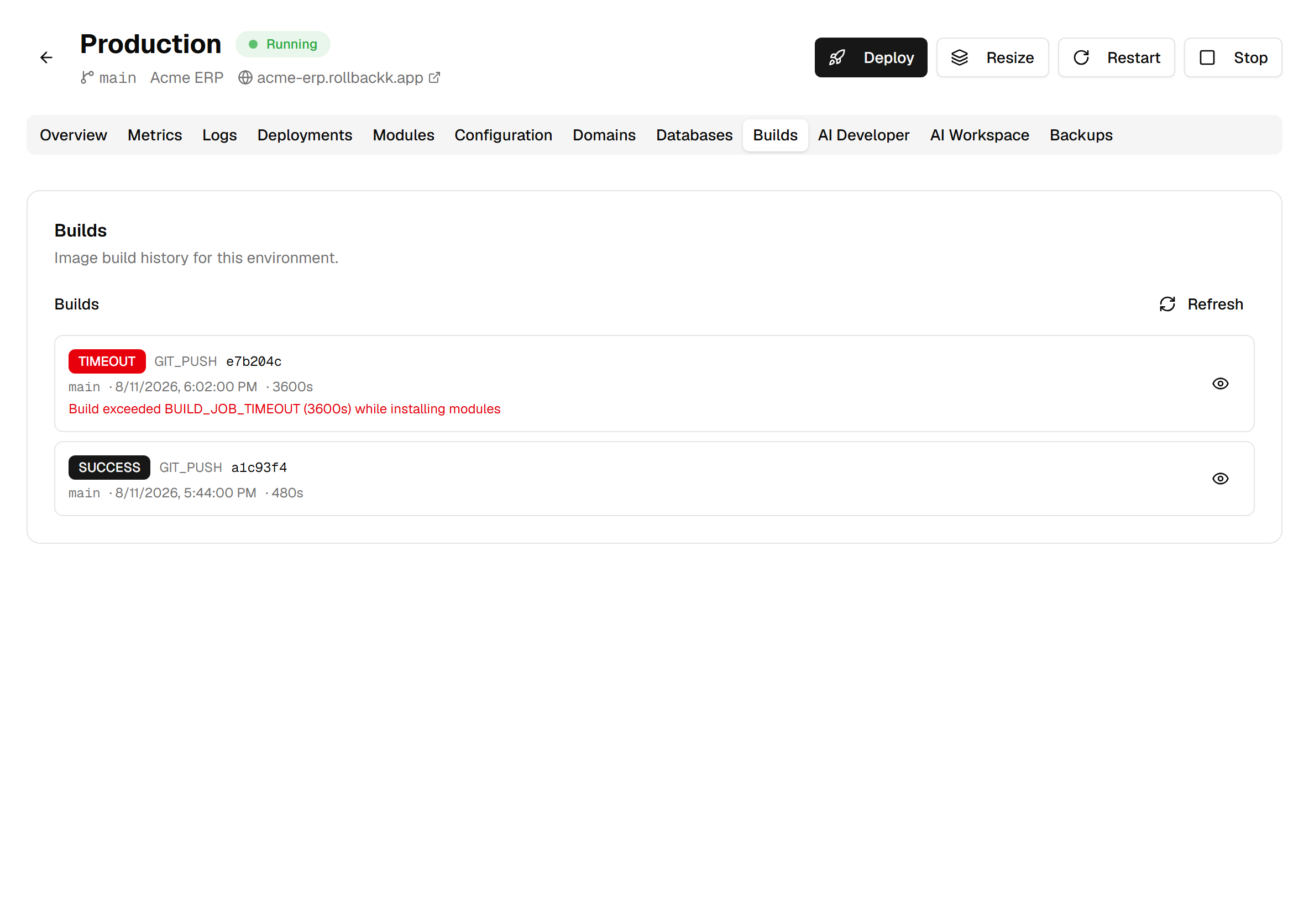
A build that runs long is not necessarily stuck. The slow parts are installing the Python requirements and pushing the image, and both grow with your dependencies. A build can also wait for a free slot first — each team runs a limited number of builds at once — and that wait counts against the deployment's patience. If a build times out reproducibly, the limit is what needs raising, not your code.
Some builds stop on purpose, and the log says why in plain words:
- Possible secrets in the source. The modules that go into the image are scanned, and a credential
that would end up inside it stops the build. The rest of the repository (documentation, CI files, editor
folders), the
tests/folders and placeholder values such as"your-key"or"${API_KEY}"are not. - No module found, or the repository root is itself a module. Modules must sit in directories, not at the top of the repository.
- Git submodules. The source a build receives does not include them, so addons that live in a submodule are simply not there.
- A dependency pulled from a URL in a
requirements.txt. Only packages from PyPI are accepted. - Too many modules, or addons too large. The log prints the count and the size against their limits, and warns before you reach them.
Python packages come from requirements.txt files, at the root of the repository or beside a module. A
manifest's external_dependencies is not installed for you: it only makes Odoo refuse the module when the
import fails.
Going back to a previous version
Deploy a past version puts a previous build back in service. It redeploys the exact image, as it was built — nothing is rebuilt, so it is fast and there is no chance of a different result.
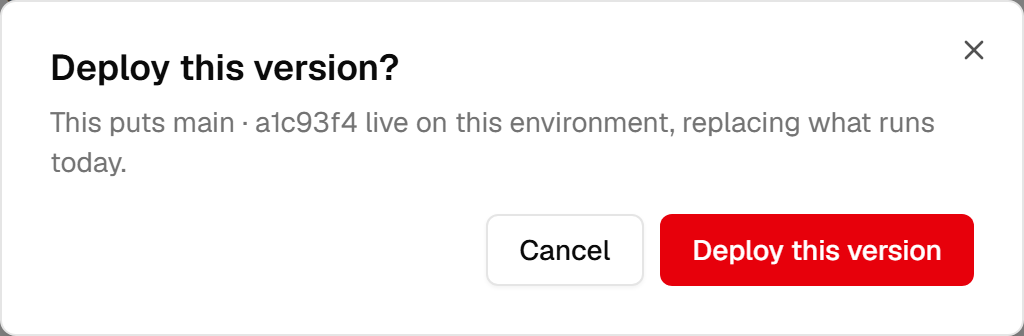
One thing it does not do: it does not migrate databases backwards. The code returns to the earlier version; the database stays where the last migration left it. For a schema change that is usually fine for a short rollback and is not a way to undo a migration. If you need the data as it was, restore a backup instead — a different operation, and it comes in two forms: Restore overwrites this environment (a safety backup is taken first and the environment restarts), while Clone to a new environment leaves this one untouched. The Duplicate production to test guide covers both.