Staying informed: notifications and channels
Choosing what reaches you and how - the eight categories, the two rules you cannot switch off, and why push is a setting of the browser rather than of your account.
Verified on September 13, 2026
A platform that tells you everything is a platform you stop reading. The notification settings exist so that the things you need reach you, on the channel where you will actually see them, and the rest waits quietly in the app.
Two ideas make the whole screen make sense: you only receive what you are allowed to see, and a small number of alerts are not yours to switch off.
The matrix: eight categories, three channels
Settings → Notifications is a grid. Each row is a kind of event; each column is a way of reaching you.
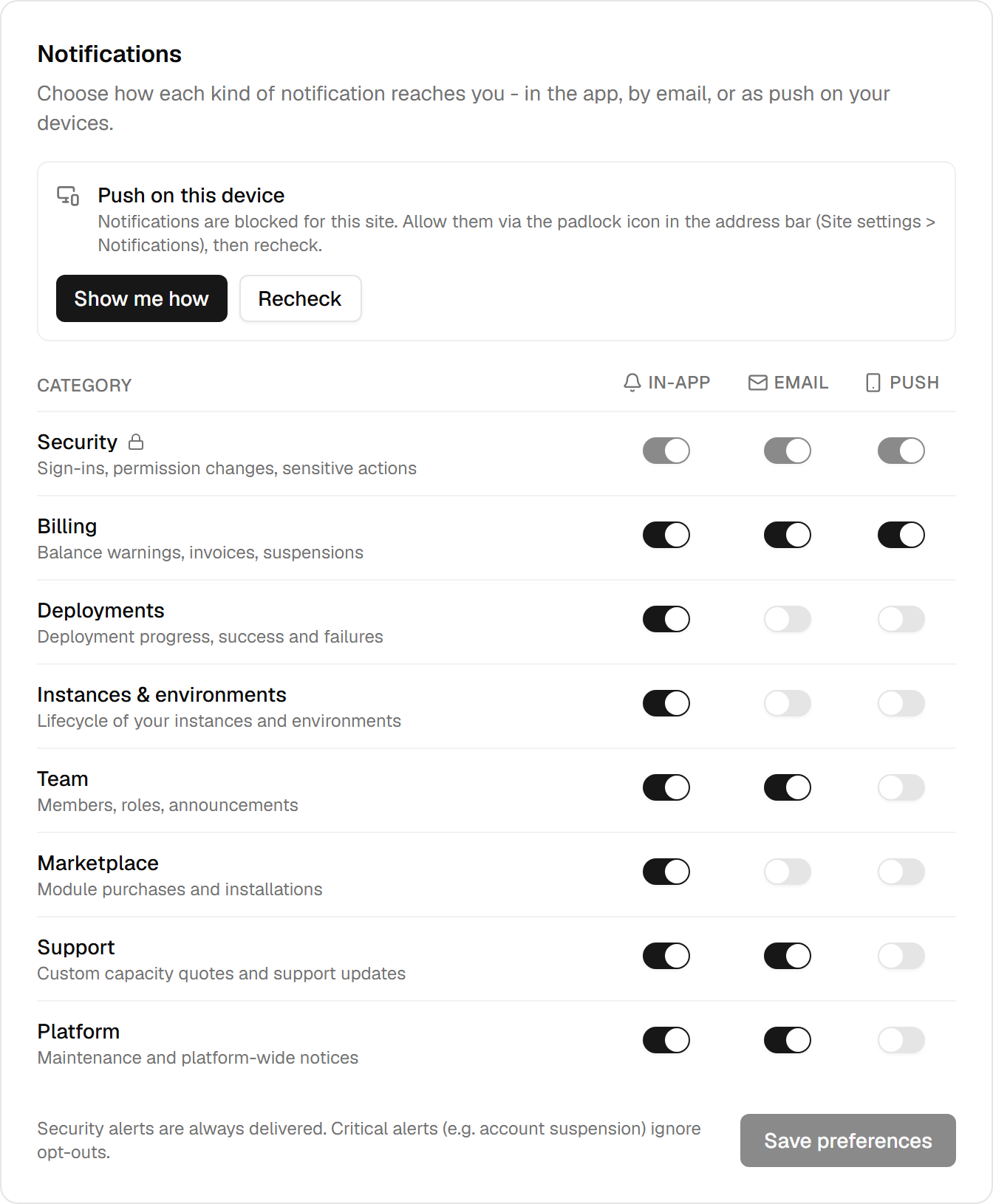
The defaults are not "all on" or "all off" — they are a considered starting point:
| Category | In-app | Push | |
|---|---|---|---|
| Security | on | on | on — and locked |
| Billing | on | on | on |
| Team, Support, Platform | on | on | off |
| Deployments, Instances, Marketplace | on | off | off |
The reasoning is worth borrowing: everything lands in the app, because the app is where you go looking. Email is reserved for what needs a decision away from the screen. Push is for the two things you would want to be interrupted for — money and security.
Deployments default to in-app only for a reason: on a busy repository they are the highest-volume category, and an inbox that fills with green checkmarks is one you stop opening.
The two rules you cannot switch off
The footnote under the grid states both, and they are enforced by the server, not by the screen.
Security is locked. Sign-ins, permission changes and sensitive actions are delivered on every channel the platform has, and the toggles are shown on and disabled. Nobody — including you — can mute the notification that would tell you your account was accessed.
Critical alerts ignore your choices. Severity is separate from category: an alert marked critical is delivered whatever the matrix says. The example that matters is an account suspension, and the rule exists because a suspension you did not hear about is an outage you cannot explain.
Everything else is genuinely yours to turn off.
You only receive what you can see
This is the part that surprises people: two members of the same team do not receive the same notifications.
Delivery mirrors the permissions. A notification attached to an instance or an environment only reaches
members whose permissions let them see that resource — global access, or a scoped grant on that exact
instance or environment. Billing notifications go to members who hold billing.view. Team, security and
platform notices are team-wide by nature.
So a developer scoped to one environment hears about that environment and not about the other four, and nobody has to configure that: it follows from the roles you already set. If a colleague is not getting something you think they should, the answer is usually in their permissions rather than in their notification settings.
Two exceptions: critical alerts, which reach everyone, and a failure of the permission lookup, which falls back to delivering team-wide rather than silencing the team during an incident.
Push is a setting of this browser
The block at the top of the panel is not an account setting. A Web Push subscription belongs to one browser on one device — enabling it on your laptop does nothing for your phone, and you enable it again there.
The block states which of five situations you are in: push not configured on the platform, browser without support, notifications blocked, already subscribed, or ready to enable.
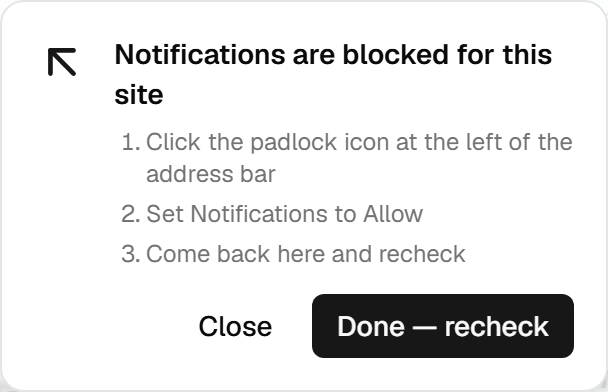
Blocked is the state worth knowing. Once you have refused the browser's prompt, it will not ask again, and no button on this page can make it. The panel tells you where the browser hides the switch — the padlock in the address bar — and offers to recheck when you come back.
The notification centre
The bell opens the feed, and Notifications shows all of it.
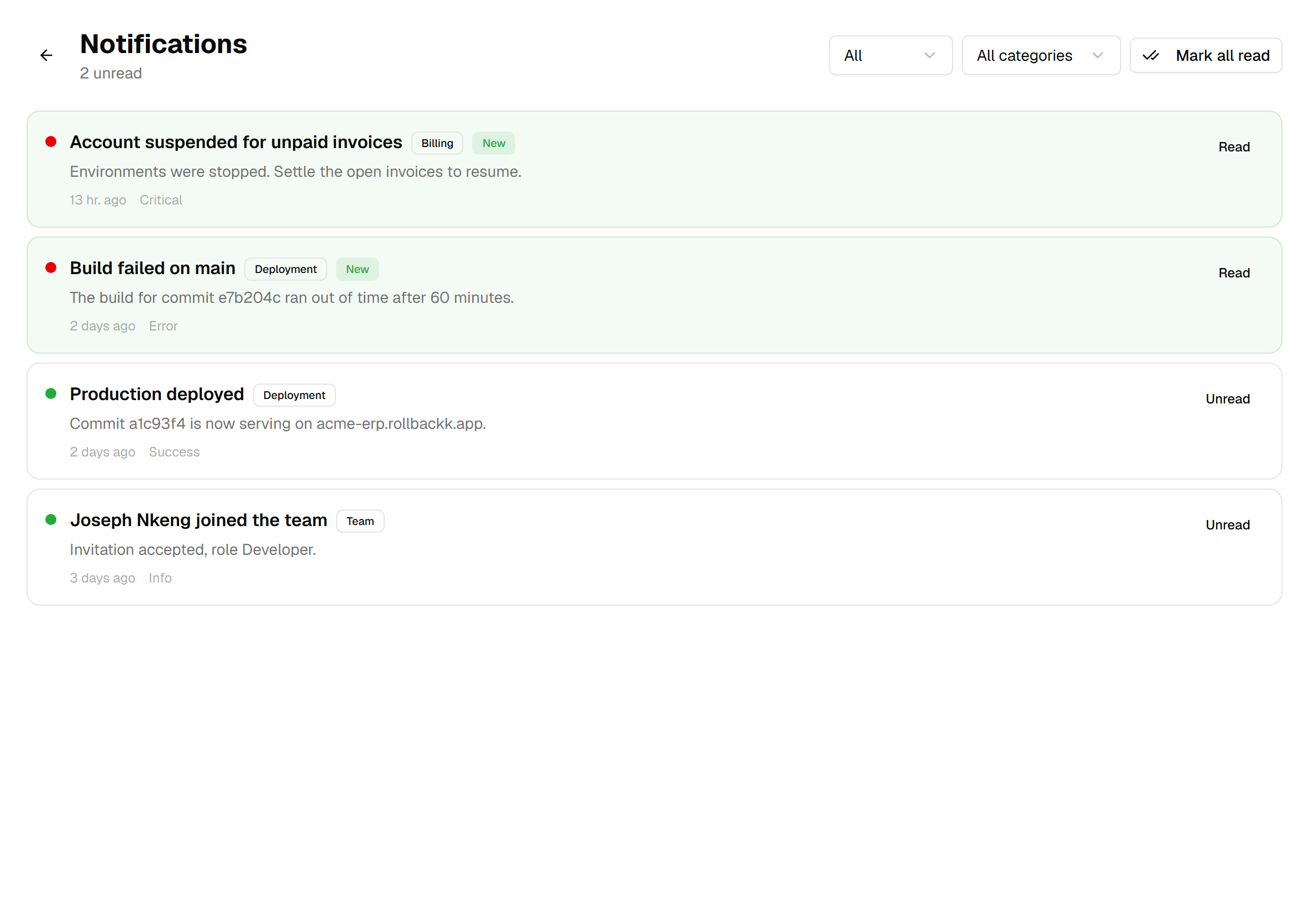
Filter by read state or by category, mark one or all as read. Notifications carrying a destination are clickable and take you to the thing they are about, which is faster than finding the environment yourself.
The feed is the reason every category defaults to in-app: whatever you switch off elsewhere, the record is still here.
Telling your team something
Members with team.notifications.send can post an announcement to the whole team. It arrives as a Team notification, follows each member's own channel preferences, and is the supported way to say "we are deploying at 18:00" without a group chat nobody reads.
Keep them rare. The value of an announcement is entirely a function of how seldom one arrives.